
Use casesInternal network access
Reach an internal DB server through two bastions
For a DB server behind two bastion hosts, chain the jump hosts once and connect with a double-click. File transfer and tunnels take the same route.
Works in FreeSince 1.0.010 min to set up
Features usedJump hostVaultTest connectionSFTPTunnel
The situation
The DB server sits inside the company network. From outside only bastion-01 is open, and you have to go from there to bastion-02 before db-01 is visible. In a terminal you write the route yourself, as in ssh -J bastion-01,bastion-02 db-01. When you move files or connect a DB tool, you have to set the same route again.
In Moorline, each server entry picks one jump host. If that jump host has a jump host of its own, Moorline follows it and builds several hops. With three entries saved, connecting is a double-click on db-01.
How to do it
- Save
bastion-01as an SSH server. Its address is the one visible from outside. - Save
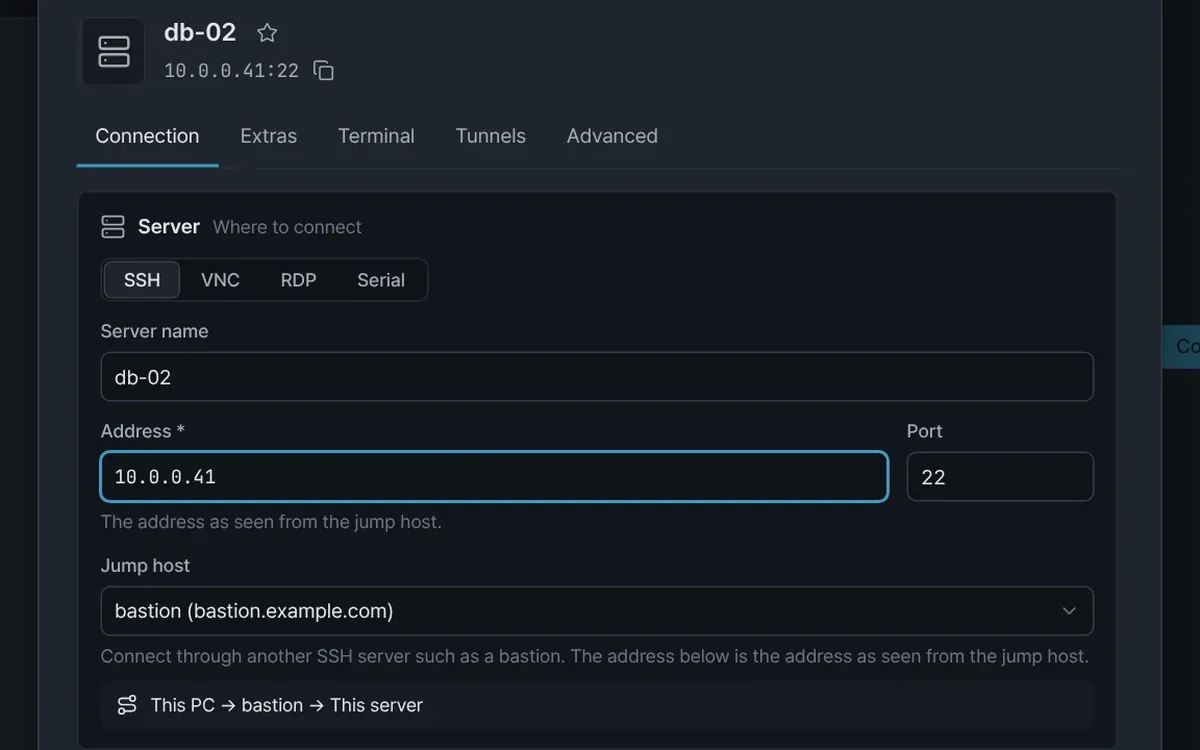
bastion-02. On the Connection tab of the server editor, choosebastion-01under Jump host, and enter the internal address as seen frombastion-01. - Save
db-01. Choose onlybastion-02under Jump host, and enter the address as seen frombastion-02. The jump host ofbastion-02is followed automatically. Below, the path appears asMy PC → bastion-01 → bastion-02 → this server. - Select Test connection. It shows one line per hop, so you can see which hop is blocked.
- Double-click
db-01. A host key prompt and a password prompt appear for each hop in turn. Each prompt says which hop it belongs to, as inVia bastion-01 · step 2/3. - When asked whether to save the password, save it. It is stored encrypted in the vault and is used per hop with that server's own account. After you connect, the status bar shows
Via 2 hops.
Files and DB tools on the same route
- SFTP: the SFTP sidebar of the connected
db-01tab shows the files ofdb-01. It goes through the same jump hosts. - Tunnel: add a rule on the Tunnels tab of the
db-01editor. The kind is "Local forward", the local port is5432, and the target is127.0.0.1port5432. With Open automatically when connecting to the server on, the port opens when you connect, and you set the DB tool's address to127.0.0.1:5432. The tunnel also opens through the jump hosts.
Tips
- A chain can have at most 4 hops. You cannot pick servers that route through each other.
- If the jump host is not in the list, use Create a new jump host… to make it on the spot. Set its password and key afterward by opening that server.
- When the connection to a jump host drops, the connections behind it drop with it. Reconnect on the tab starts again from the hop that dropped.
- When a connection fails, the message says which server and which hop failed.
- A
ProxyJumpline in~/.ssh/configbecomes a jump host when you import it.
Good to know
- If the SSH settings of a jump host block port forwarding (
AllowTcpForwarding), the connection fails. The name of the blocking server is shown when you connect. - Behind different bastions, the same internal address can be a different server. If the host key looks changed but the route is different, check the route first.
- A jump host and a connection command (ProxyCommand) cannot be used together.
- An administrator policy may restrict jump hosts or the maximum number of hops.
- The Free edition uses one local forward tunnel. The second tunnel and later need Pro.
With the 1.0.0 guide and automated tests (a two-hop chain through three real sshd servers), the jump host setup, per-hop host key and password prompts, the connection test, and tunnels were checked.