
Use casesInternal network access
Open internal admin pages and databases on your own PC
Use admin pages and databases that only open from inside a server, from your own browser and tools, just by connecting to the server.
Works in FreeSince 1.0.05 min to set up
Features usedTunnelsOpen automatically when connectingJump host
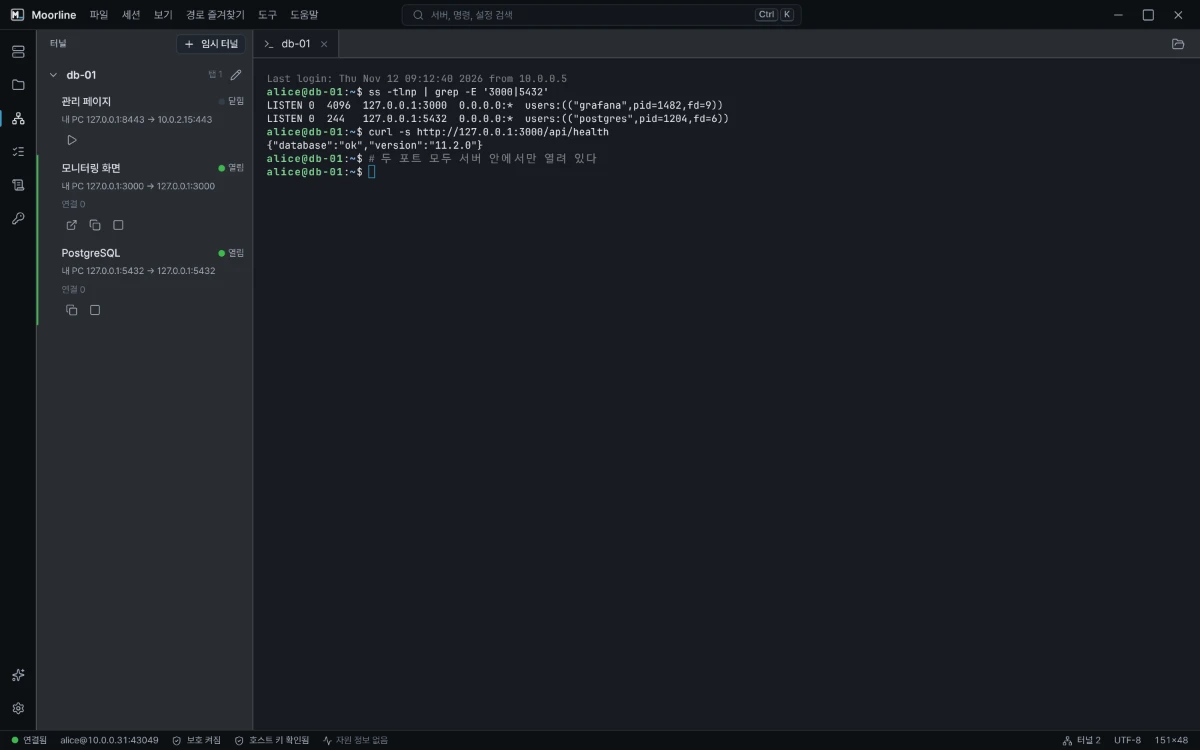
The situation
The monitoring page listens on port 3000 of the server and the database on port 5432, but neither is open to the outside. Every time you want to look, you have to remember the ssh -L option, type it in a terminal, and be careful not to close that window.
If you save a tunnel rule on a server entry, the ports open automatically whenever you connect to that server.
How to do it
- In the server editor, add a rule on the Tunnels tab. The type is "Local forward", the local port is
3000, and the target is127.0.0.1and port3000as seen from the server. If the target is another internal server, enter its address. - Select Check port to see whether the port is free on your PC. If another program is using it, Moorline suggests a free port.
- Turn on Open automatically when connecting to the server and save.
- Connect to the server. When the status bar shows
Tunnels 1, openhttp://127.0.0.1:3000in your browser. You can also select Open in browser in the tunnel panel.
A database works the same way. Make a rule with local port 5432 and target 127.0.0.1 port 5432, then set the connection address in your database tool to 127.0.0.1:5432.
Tips
- The server can sit behind a jump host. The tunnel opens through it.
- If you need to browse many internal addresses with your browser, make the type a proxy (SOCKS5) and enter
127.0.0.1:1080in the browser's proxy settings. - For a tunnel you will use only once, open a Temporary tunnel in the tunnel panel. It is not saved, and if it turns out to be useful you can save it as a rule.
- A tunnel you open directly from the tunnel panel stays open after you close the terminal tab, and closes when you quit the app.
Good to know
- The Free edition allows one local forward tunnel.
- When a connection drops, Moorline leaves the opened ports as they are and reconnects. If a password or host key confirmation is needed, it stops and the panel shows a Reconnect button.
- If you change the address to something other than
127.0.0.1, other PCs on the same network can connect to that port. A confirmation dialog appears once more. - If the server's SSH settings block port forwarding, the tunnel does not open.
Opening a tunnel and fetching a server-side web page through a port on your PC, and reconnecting after a drop, were checked with automated tests.