
See all Docker container logs at once
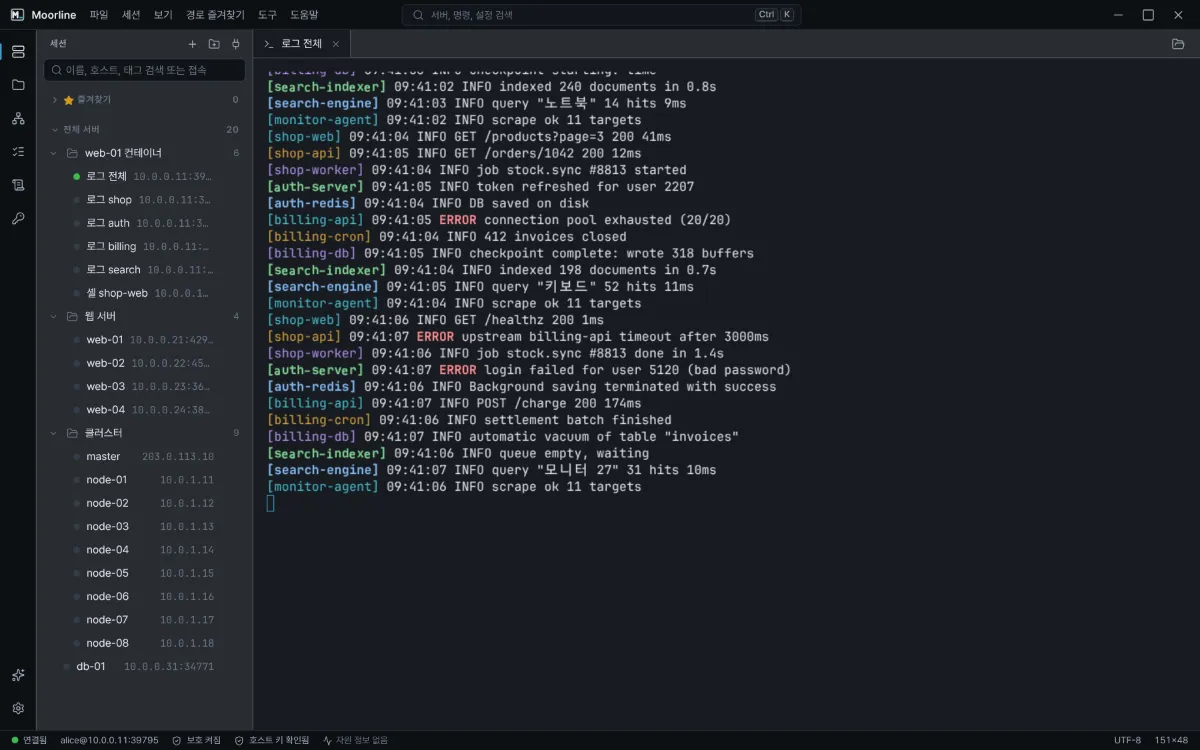
When a server runs more than ten containers, skip opening one window per container and watch every log in a single view with one double-click.
ProSince 0.10.05 min to set up
Features usedDuplicate serverRun after sign-inOpen many servers at onceTerminal find
The situation
One server runs several services, each in its own folder with a compose file. To read the logs you open a terminal window per service, connect, go into the folder, and type the command. With ten containers, you do that ten times.
Every server entry in Moorline has a Run after sign-in field for commands that run automatically right after connecting. If you duplicate the same server and give each copy a different command, each entry becomes a log view that opens with one double-click.
Option 1. All containers in one tab
- In the sessions list, right-click the server and select Duplicate.
- Right-click the copy, open Edit, and rename the server, for example
All logs. - On the Terminal tab, under Run after sign-in, put the line below in "Commands to run" and save.
- Double-click the new entry. The logs of every container stream into one view, each line tagged with
[container name].
The line for step 3:
(for c in $(docker ps --format '{{.Names}}'); do docker logs -f --tail 5 $c 2>&1 | sed "s/^/[$c] /" & done; wait)Keep the parentheses at the start and the end. They let a single Ctrl+C stop everything. To watch only some containers, add a filter after docker ps, such as --filter name=shop.
Option 2. One entry per service folder
When you want to watch a single service quietly, make an entry for each folder.
- Duplicate the server and rename it, for example
Logs shop. - Under Run after sign-in, set "Start folder" to the folder with the compose file (for example
/srv/services/shop) and "Commands to run" todocker compose logs -f --tail 20. - Repeat for every service and keep them together in one group.
Option 3. Straight into a shell inside a container
If you need to run commands inside a container rather than read logs, put this line in "Commands to run". A double-click then connects to the server and enters the container in one step.
docker exec -it container-name shTips
- To open several entries at once, click the first one, Shift+click the last one, right-click, and select Open terminal.
- In the terminal, press Ctrl+Shift+F to open the find bar and enter
ERROR. Every match on screen is highlighted. - Press Ctrl+Shift+\ to split the view in two and read two logs side by side.
- Turn on the text log in the terminal category of Settings to keep what appears on screen in a file.
Good to know
- Option 1 follows only the containers that were running when you opened the entry. For a container that started later, press Ctrl+C, then the up arrow and Enter to run the line again.
- The sign-in account must be able to run
dockerwithoutsudo. - A duplicated entry asks for the password once the first time you open it. After you save it, it does not ask again.
- Each entry counts as one saved server, and each open tab counts as one session. With many entries, you will go over the Free edition limit.
- Commands under "Run after sign-in" are visible on screen and in session recordings. Do not put passwords or tokens in them.
Checked on a real SSH server with 12 containers (5 service folders). 2026-11-12.