
Spot only the unhealthy servers among dozens
Check disk usage, certificate expiry, and service status without logging in to each server. Run one command and look only at the servers that are not healthy.
ProSince 0.10.05 min to set up
Features usedBatch runResult groupsCompare with an earlier runExport
The situation
Every morning you check whether the disks on twenty servers are full, whether a certificate is about to expire, and whether the services are up. Going through them one by one takes half an hour, and by the eighteenth you are skimming the numbers.
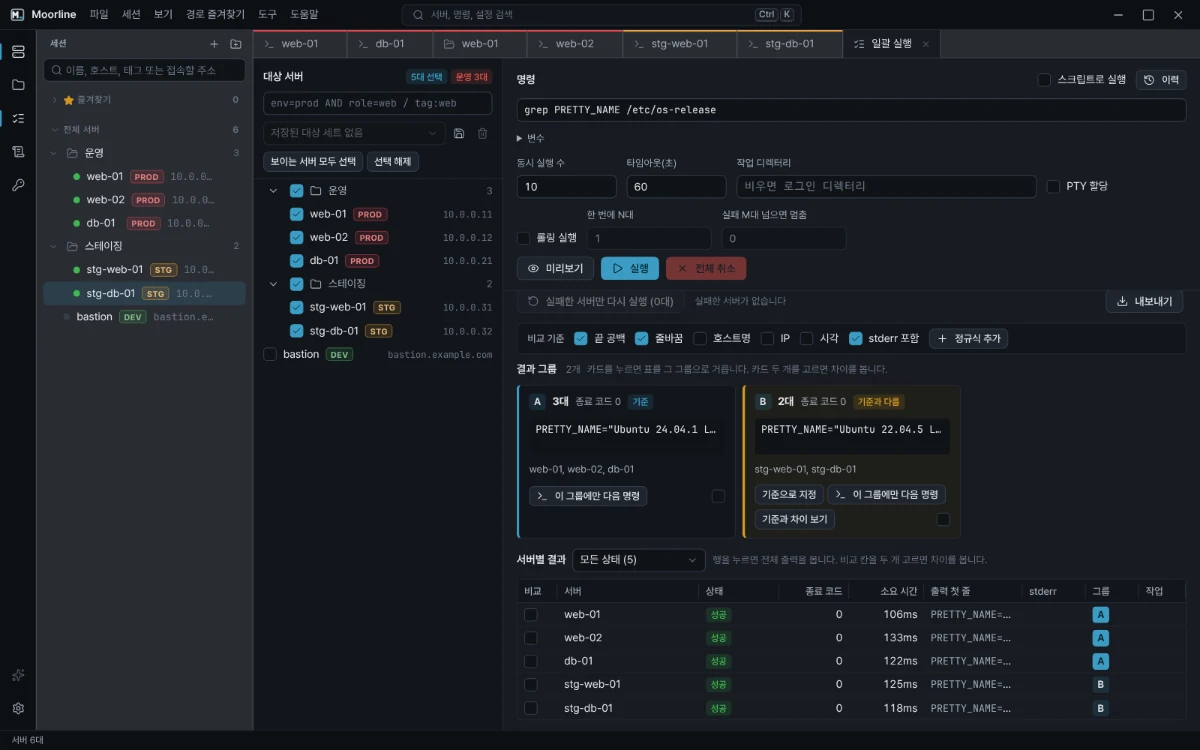
Batch run groups servers that return the same output. Use that: write the command so that every healthy server says the same thing. Healthy servers fold into one group, and only the servers with a problem stay on their own.
How to do it
- Open Batch run in the rail and check the target group. You can also pick targets by condition, such as
env=prodortag:web. - Turn on Run as script and enter the three lines below.
- Run it. The result usually has two or three groups. The big group is the servers where all three lines are healthy. The small groups are servers with a disk over 80%, a certificate that is about to expire, or a service that is down.
- Treat the big group as the baseline, then select a small group to see which line differs.
The script for step 2:
df -P / | awk 'NR==2 { if ($5+0 >= 80) print "disk critical " $5; else print "disk ok" }'
openssl x509 -checkend 2592000 -noout -in /etc/ssl/certs/site.pem >/dev/null && echo "certificate ok" || echo "certificate expires within 30 days"
systemctl is-active nginx
Tips
- If you print raw numbers, every server differs and nothing groups. Print only whether a threshold was crossed, and add the number only when it was.
- Save the target set. The next day, pick the set and just run.
- Open yesterday's run in History and compare it with today's to see which servers newly have a problem.
- Servers that failed (for example, unreachable ones) are shown separately, and you can use Rerun failed servers only.
- Export the results as CSV or XLSX to keep them as a check record.
Good to know
- Batch run never asks for passwords or host keys. Servers without a saved account, or with a host key you have not seen before, are skipped with the reason. Connect to them once in a terminal.
- If production servers are among the targets, you confirm by entering the number of targets before the run.
- Output is capped at 1 MB per server. It is not meant for pulling entire long logs.
Result groups, rerunning only the failures, and comparing two runs in Batch run were checked with automated tests.