
Move in the server list from another connection tool
Import the server list saved in the connection tool you used before. Find it on this PC, check the preview, apply, and undo if it is not what you wanted.
Works in FreeSince 1.0.010 min to set up
Features usedImport from other toolsFind on this PCOpenSSH configUndo last import
The situation
The connection tool you used before has dozens of servers saved. To switch, you would retype the address, port, user, and group of each one. That chore makes switching easy to put off.
Moorline reads the session files and SSH config file of other connection tools and imports them as a server list. Before anything is applied, a preview shows what will come in.
How to do it
- Open Import from other tools under Settings > Backup and restore.
- Select Find on this PC. It reads known locations on this PC (the SSH config file, the session folders and settings files of other tools, and the registry on Windows). It shows the tools found and their session counts, and it changes and runs nothing.
- Choose a tool that was found. The preview opens.
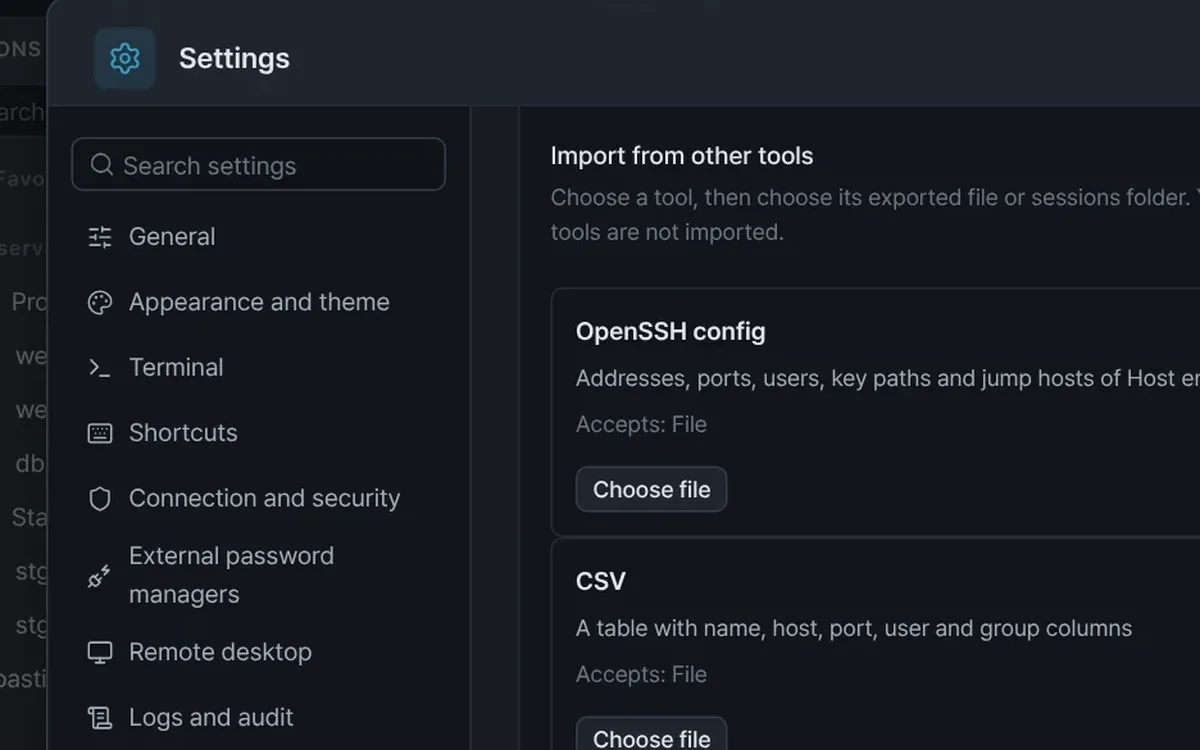
- If nothing was found, or the file was exported on another PC, choose from the cards under Tools you can import from. Each card says what it imports and what it accepts (file, folder, zip). The buttons are Choose file, Choose folder, and Choose zip.
- For an SSH config file, choose
~/.ssh/configon the OpenSSH config card. It imports the address, port, user, key path, and jump host (ProxyJump) of each Host entry. - The top of the preview shows counts by type. For example:
SSH 42 · RDP 7 · Serial 3 · Skipped Telnet 5. Sessions of unsupported types, such as Telnet, are skipped, and only their count is shown. - Each server gets a status of New, Same, or Different. When the same server already exists, choose Keep existing, Replace with imported, or Keep both. For a first move, keep the mode on Merge or New items only. Replace all removes the items you have now.
- Select Apply. If the result is not what you wanted, undo it with Undo last import under Settings > Backup and restore.
What to check after importing
- Passwords do not come over. Enter them again the first time you connect, and save them to the vault when asked. The only exception is a password that one tool stored as plain text, and it goes to the vault only when you check Also import saved passwords into the vault yourself.
- A server that logged in with a key brings only the path of the key file. Check that the key file exists at that path on this PC.
- A jump host is linked only when it can be found in the same source. If it cannot, the server comes in without a jump host and with a warning. Servers that were linked show a Via mark in the preview.
- The note of an imported server starts with
[Imported from …]. Use it to find which tool an entry came from. - Login scripts and commands in the source file are not run and are kept only as a note. A connection command (ProxyCommand) does not run until you check its contents in the server editor and select Allow to run.
Good to know
- Source files and the registry are only read. They are never changed or deleted.
- The saved-server limit of the Free edition is 10. If the total would go over 10 after the import, apply is blocked, so import fewer servers or split the file.
- File formats differ between tools, so some items may not carry over. Check the server count and statuses in the preview first.
- Where an administrator policy blocks importing, this feature is locked.
With the 1.0.0 guide and automated tests (Find on this PC, preview, apply, undo), the import flow was checked. The parsers for each tool were tested with sample files built from public documentation, and not yet with real exported files.