
Check what differs between a server and your folder before uploading
Put the folder you are deploying next to the server's current folder, mark what changed, upload only the files that differ, and compare config files line by line.
ProSince 0.10.03 min to set up
Features usedDual-pane SFTPCompare foldersCompare filesSync browsing
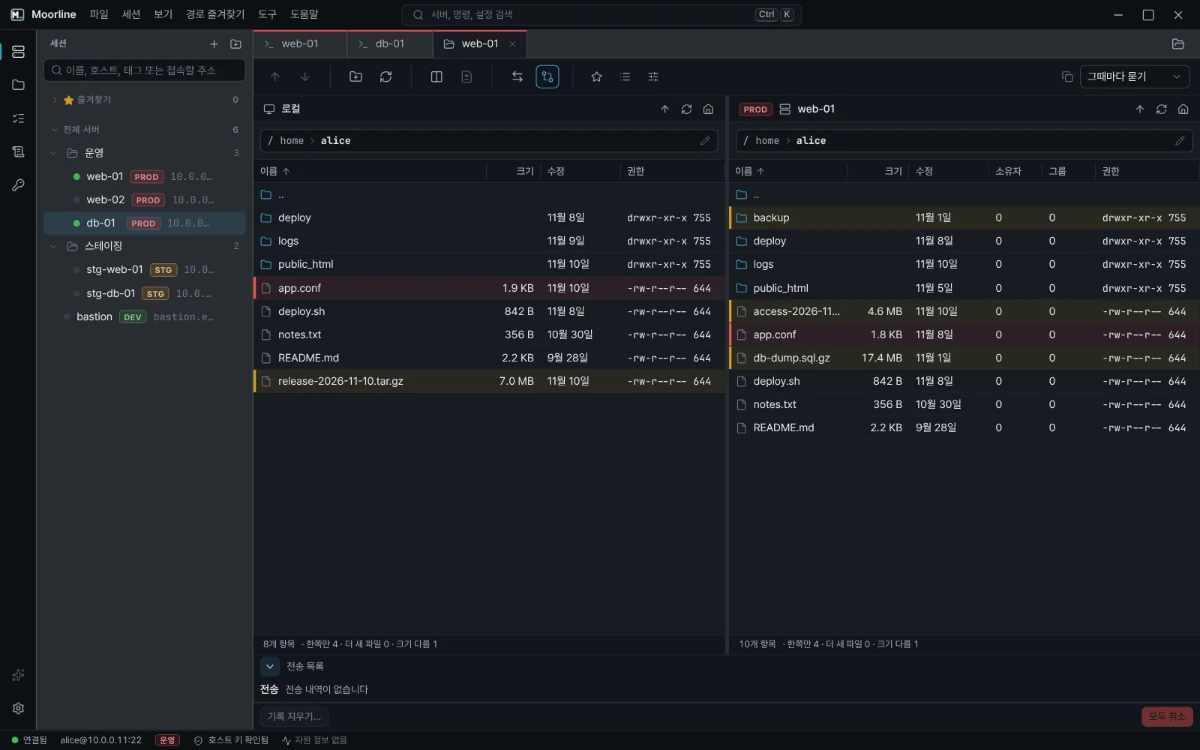
The situation
You need to upload a few files you fixed in a hurry. Overwriting the whole folder could wipe out a setting someone edited directly on the server, and picking files one by one means trusting your memory of what you changed.
Compare folders in a dual-pane SFTP tab compares both folders and marks files that exist on one side only and files whose size or time differs.
How to do it
- Connect to the server and open a dual-pane SFTP tab with the button above the SFTP sidebar. Local and remote appear side by side.
- Go to the folders you want to compare. If you visit a place often, star it to save it under Path bookmarks, and next time you can jump straight there.
- Select Compare folders. The files that differ are marked.
- For a file whose contents you want to check, right-click it and choose Compare file contents. The lines that differ between your file and the server's file are shown side by side.
- Select only the files to upload and drag them to the other side. If a file with the same name exists, choose between overwriting, skipping, and saving with a new name.
Tips
- Turn on Sync browsing so that when you move to a folder on one side, the other side follows. It makes it easier to step into subfolders and keep looking at the differences.
- Check config files that were edited directly on the server by comparing before you upload. If you see a line that exists only on the server, add it to your file, then upload.
- If you edit a server file from its context menu, it opens in an editor on your PC and uploads again when you save.
Good to know
- Comparing folders and files is a Pro feature. For 14 days after installing you can try it as it is.
- Line-by-line comparison suits text files. For archives and executables, judge by size and time only.
Folder comparison marks and file comparison were checked with automated tests.