
Have the AI agent find why a server's disk is full
On a server with a full disk, write only the goal and the AI agent proposes commands one at a time. Only the commands you approve run on the server.
ProSince 1.0.010 min to set up
Features usedAI agentApproval cardCommand guardStep limit
The situation
An alert says the disk is nearly full, so you connect. You look at df -h to see which partition, find the big folders with du -sh /*, go into the biggest one, and run du again. You repeat that order until you know whether the cause is logs or container images.
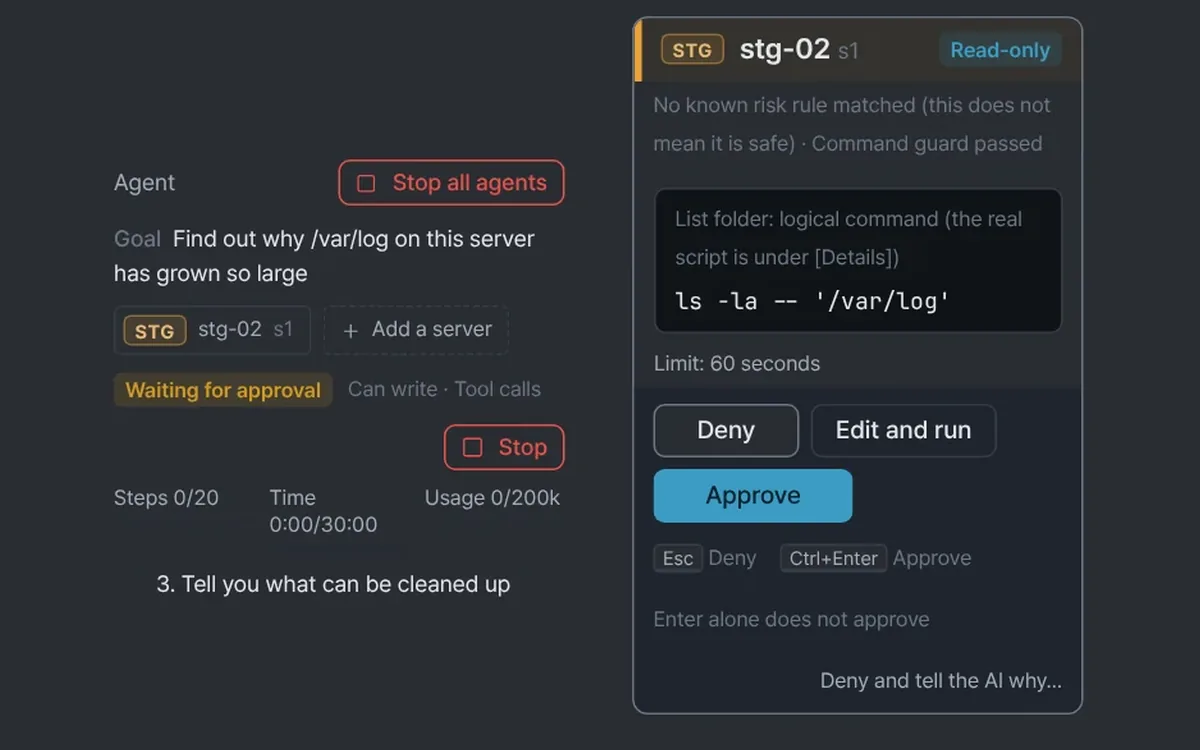
The AI agent takes that search as a one-line goal and proposes commands one at a time. Each command is shown as a card first, and only approved commands run on the server. The AI reads the result and picks the next command.
How to do it
- Under Settings > AI > AI agent, turn on Use the AI agent. It is off at first. The model must support tool calls, so check it with Test agent in the provider settings.
- Connect to the server and keep its tab open. At the top of the AI panel, select Agent.
- Write the Goal. For example:
Find out why this server's disk is full - Under Choose servers, pick the server. Under Tools it can use, set the range. Read-only uses only server info, folder listing, file reading, and text search. To let it run shell commands such as
du, choose Write-capable commands too. - Select Start.
- An approval card appears for each proposed command. Read the server name and environment, the full command, the model's explanation, and any risk the command guard found, then decide. The first focus is on Deny, and you approve with Ctrl+Enter (Cmd+Enter on macOS) inside the card. Enter alone does not approve.
- When reads in the same folder keep coming, turn on Don't ask about similar reads during this run on the card. Reads in the same folder on the same server are then approved automatically, up to 50 times or 10 minutes. A strip appears above the panel, and Release turns it off at any time.
When a command deletes something
If the cause turns out to be old logs, a cleanup command is proposed. It appears on the same kind of card. Read the whole command on the card and check that the path to delete is right before you approve.
- A command judged dangerous changes the approve button to Run despite the risk. For some commands you must type the server name exactly to unlock it.
- A command blocked by a command guard rule is not shown on a card. It is recorded with the reason and does not run.
- To change a command, select Edit and run. The command guard checks the edited command again, and it is marked as edited.
- Deny and tell the AI why gives the AI your reason.
- A card for a production server has a dark band and a PROD mark, and its approve button is locked for 1.5 seconds. Approval for this run is not available on production servers.
Steps and budget
Above the panel you see how much of the steps, time, and usage is left. The default limits are 20 steps and 30 minutes, and one command may take 60 seconds. You change them under Settings > AI, within the cap an administrator policy sets where there is one. Time spent waiting for your approval is not counted.
When a limit is reached or the connection drops, the agent stops and asks what to do. If steps run out, the N more steps button continues. To block a single command, select Deny on its card. To stop the whole run, select Stop.
Tips
- The agent runs a
sudocommand only if it works without a password. Otherwise a hand-over card appears. Use Insert in terminal to place it on the input line, run it yourself, then select Done, tell the agent so the AI continues. - The record in the log view shows the Local original and the Text sent to the AI of a command result side by side.
- Put cautions about a server in Notes for the AI, under Extras in the server editor. The agent receives that note per server in its instructions.
Good to know
- If you press Approve without reading the card, the protection is gone. Server output can contain text meant to trick the AI, so deny commands you do not recognize.
- The absence of a risk mark does not mean a command is safe.
- Server output goes to the AI provider after known secret shapes are masked and the text is cut. The default size is 16 KiB. Some secrets may not be masked.
- Passwords and the contents of the vault do not go to the AI.
- A command that ended on a timeout may still be running on the server.
- What really must be prevented on a server belongs in
sudorestrictions or a read-only account. - Servers that are disconnected, Windows servers, and servers that block command execution channels are grayed out with a reason and cannot be chosen.
With the 1.0.0 guide and automated tests (using a fake AI server and a fake runner), the approval card, the dangerous command card, approval for this run, and the limits were checked. It was not tried with a real AI provider or a real server.